











































RetouchMe logo
  • Services
  • Articles
  • Contacts
  • About
  • Sorry, no results.
    Try to enter the name of edit option, body part or photo manipulation that you want to perform, such as Nose, Legs, Remove People, Background, etc.
    Sorry, no results.
    Try to enter the name of edit option, body part or photo manipulation that you want to perform, such as Nose, Legs, Remove People, Background, etc.

    Photography frequency separation in the online photo editor app
    Before/after example
    Get Professional Retouching
    with RetouchMe
    Improve Your Photo Now
    4.4
    15570 Reviews

    How to use the service “Frequency separation”

    The RetouchMe application is available on iOS and Android platforms. You can download it from the Apple App Store, Google Play or Amazon App Store.

    1. Launch or download the RetouchMe application.
    2. Select a photo from your gallery that you want to use the “Frequency separation” service on.
    3. Choose the category “Pro edit”.
    4. In this category, select the desired service “Frequency separation”.
    5. Price of the “Frequency separation” service: 160 ⭐.
    6. After selecting the services you want to use for the photo, click on the "Proceed" button.
    7. Review your order once again and click "Send to designer."

    Pros and cons of "Frequency separation" service in photo editor

    RetouchMe logo RetouchMe Free Photo editor Online Photo Editor AI Photo Editor
    Difficulty of use
    Simple
    RetouchMe allows you to press one or multiple buttons to achieve great results with the "Frequency separation" service.
    None
    Free Photo editor does not provide such a feature.
    Medium
    Online Photo Editor requires good skills to achieve the expected results with the "Frequency separation" service.
    None
    AI Photo Editor does not provide such a feature.
    Retouching quality
    Excellent
    RetouchMe allows you to achieve excellent retouching results with the "Frequency separation" service.
    None
    Free Photo editor does not provide such a feature.
    Bad
    Online Photo Editor does not allow you to achieve good retouching results with the "Frequency separation" service.
    None
    AI Photo Editor does not provide such a feature.
    Time to edit
    Fast
    RetouchMe allows you to spend 3-5 minutes on editing for the "Frequency separation" service.
    None
    Free Photo editor does not provide such a feature.
    Medium
    Online Photo Editor allows you to spend 5-10 minutes on editing for the "Frequency separation" service.
    None
    AI Photo Editor does not provide such a feature.
    Naturalness
    Excellent
    RetouchMe allows you to achieve a fully aesthetic result with the "Frequency separation" service.
    None
    Free Photo editor does not provide such a feature.
    Bad
    Online Photo Editor does not allow you to achieve a naturally acceptable result with the "Frequency separation" service.
    None
    AI Photo Editor does not provide such a feature.

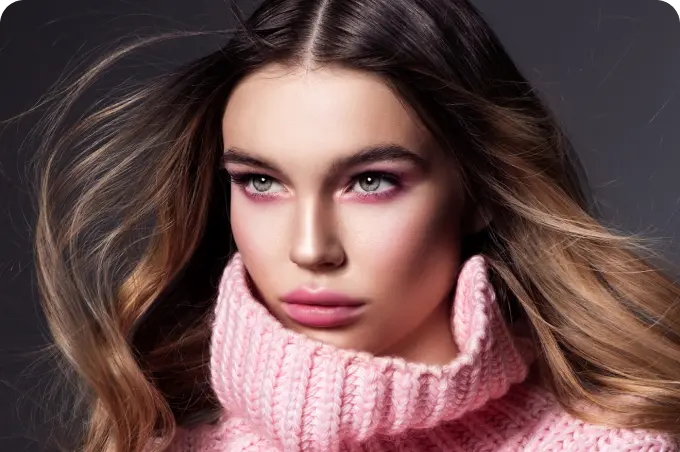
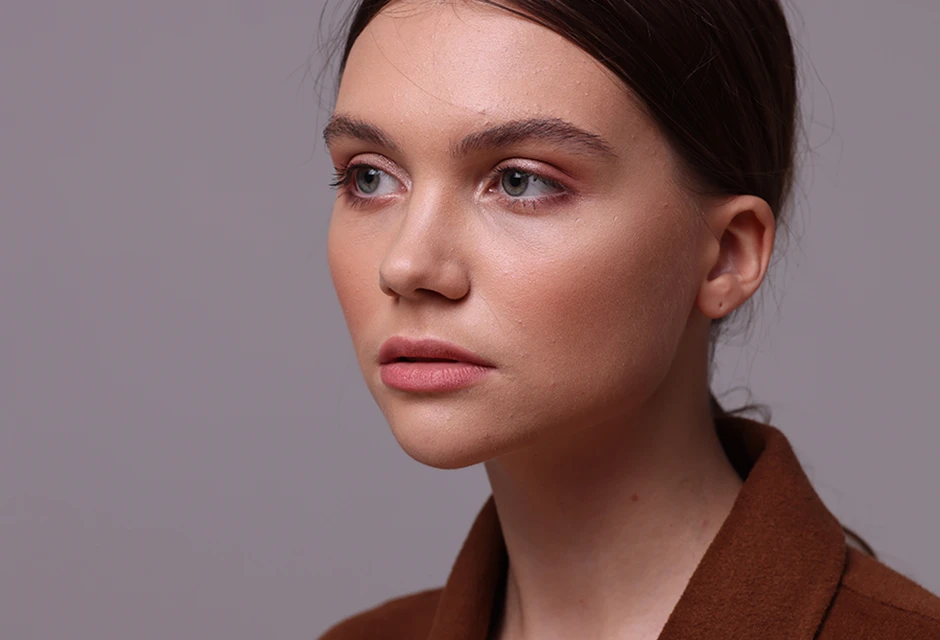
    Frequency separation is one of the most complex retouching methods. However, practically no deep facial photo retouching can do without it. Professional retouchers appreciate frequency separation because it allows them to delicately remove defects, irregularities, and color artifacts from a photo without damaging the texture (of the skin or surface). This method often intimidates beginners: frequency retouching might seem too intricate, a multi-stage process that requires specific knowledge and significant time investment. Let's not deceive ourselves to perform skin retouching using frequency separation, you'll need to exert considerable effort. But the result is definitely worth it.

    Image 1

    Frequency separation method: what are frequencies?

    Spatial frequency is the frequency at which brightness changes when moving horizontally or vertically. A photograph is a two-dimensional image, so the frequency grid is formed by the intersection of horizontal and vertical stripes. The change in brightness depends on the frequency's height: the higher the frequency, the smaller the details it defines. Accordingly, the lower frequencies contain the largest details of the image.

    What is frequency separation in photography?

    In order to retouch details without affecting the overall color (of a face or an object), it is necessary to break down the image into frequencies and work with each separately. There is no need to decompose the photo into a spectrum. It's sufficient to split it into several bands below or above a certain frequency. The lowest frequencies comprise the distribution of brightness and color, the light and shadow pattern. The middle frequencies encompass volumes, while the higher frequencies involve texture and details. For deep retouching, we divide the image into two frequencies - lower and upper. The upper frequency will contain contours and facial lines, hair strands, pores, skin, and clothing texture. The lower frequency covers colors, shapes, shadows, highlights, and skin tone.

    Image 2

    How to use frequency separation

    To use the frequency separation tool, you should memorize the algorithm of actions and stick to it. Otherwise, the result won't be accurate. Initially, the process might seem complex, but the more experience a retoucher gains, the quicker the procedure becomes. In the RetouchMe app, a team of professional retouchers manually processes each photo, using methods including frequency separation. Years of experience, professional equipment, and cutting-edge software ensure impeccable retouching results by the digital artists at RetouchMe. If you want to save time and resources, just a couple of clicks will solve all your retouching tasks with RetouchMe. If you want to learn how to do it yourself, get ready with a notepad and pen.

    Retouching tool frequency separation step by step:

    1. Preparing the layers:
    • Create two copies of the original layer.
    • Reveal the low frequencies.
    • Reveal the high frequencies.
    1. Adjusting the tools.
    • Decide how to work. Step by step with the layers or constantly switching between them.
    • Adjust the tools for high frequencies. Try Clone Stamp, Healing Brush.
    • Adjust the tools for low frequencies. Try Mixer Brush.
    1. Moving on to retouching:
    • Keep only the bottom layer visible and apply the Gaussian Blur filter to it. Make adjustments using the mixer brush and correct the skin tone.
    • Keep only the high-frequency layer visible and start working with the texture. Remove imperfections.
    • Merge the layers and check the adequacy of the applied retouching.

    Image 3

    Frequency separation in Photoshop: where is the tool used?

    Frequency separation is a precise and effective tool that can help eliminate the following issues in photos:

    • Remove acne, wrinkles, scars, extra moles, and freckles on the face and body.
    • Even out the facial tone without losing skin texture, and eliminate excessive shine on the face.
    • Remove stains from clothing, shadows from faces and objects.
    • Fix makeup by removing blurriness and imperfections.
    • Smooth out wrinkled clothing.
    • Erase clothing marks on the skin of the body or face.
    • Adjust hairstyles.
    • Enhance specific facial details (lips, eyes) without blurring their texture.

    Interventions after frequency separation will be barely noticeable, and the face won't turn into a plastic mask. This is a versatile tool that allows you to work on numerous details in a photo. However, as mentioned above, knowledge and experience are required to work with it. Professionals at RetouchMe will be happy to do this job for you! Just a couple of clicks stand between you and perfect retouching!

    Updated: Jan 3, 2025
    Created: Apr 13, 2023
    Time to read: 3 min
    Share
    Author

    Co-founder of RetouchMe. In addition to business, he is passionate about travel photography and videography. His photos can be viewed on Instagram (over 1 million followers), and his films can be found on his YouTube channel.
    Moreover, his profile is featured on the most popular and authoritative resource in the film industry — IMDb. He has received 51 international awards and 18 nominations at film festivals worldwide.


    Improve Your Photo Now
    Before/after example
    Get Professional Retouching
    with RetouchMe
    4.4
    15570 Reviews
    Our other products:
    bg
    AppStore
    Impressive effects for TikTok
    Create videos with special effects like social media influencers!
    4.2
    47 Reviews
    AppStore GooglePlay
    Retouchme Pro
    Retouchme Pro
    Retouching for Professional Photographers
    Enhance your commercial photos with professional retouching!
    Learn more
    AppStore/GooglePlay user reviews
    Terrimtz
    Dec 8, 2025
    They do such a great job at editing my photos! The best and the only one I use after trying several!
    Mamagritti
    Dec 8, 2025
    I can’t believe how fast they do custom retouches!
    4420rose
    Dec 6, 2025
    Used the app to fix stray hair & enlarge half-closed eyes in family pictures. Satisfied with the results. Would recommend to anyone that needs to retouch their photos.
    Alli from MS
    Dec 3, 2025
    I love the edits, it takes a while for the edits to come back but so worth the wait.
    ekc1217
    Dec 2, 2025
    So much fun to have a picture you just “mostly” like turned into one you LOVE! It’s quick and easy! A great app for fun touch ups or total makeovers!
    LLcoolTAY
    Dec 1, 2025
    Literally a godsend. They are the best at editing when you’re in need of any kind of edit on any photo. I have been using their app for YEARS now and literally will not post a photo without having them edit it first. The best part is - THEY DO ALL THE WORK FOR YOU! They are the absolute BEST! 🙏🏽🤍
    VCRSJ
    Dec 1, 2025
    This app is so amazing because it gives you a very natural edit to where you can’t notice it was edited it looks so natural. Best one to have
    Jewels @ the Shore
    Nov 30, 2025
    Best app. Been using it for years.
    apiesue*
    Nov 29, 2025
    This app is so convenient and never disappoints
    Lild416
    Nov 29, 2025
    Helps out so much!
    Liliana Aho
    Nov 28, 2025
    I loved this app and have had it for years. I did take away one star because sometimes there is long wait times for your photo to be edited, and for the first couple of years, it was never more than 15 minutes that you had to wait. Now that it has been a few years of having it there will be wait times for one to two hours if it’s a holiday or you’re in a certain area or it’s a certain time of the day. But overall, it’s a great app!
    j. streisand
    Nov 28, 2025
    Always do great job on all the changes I want in a photo. Amazing
    princisivi
    Nov 27, 2025
    Es el mejor es práctico para cualquiera que está aprendiendo a usar me encanta como deja las fotos
    Needs more modes
    Nov 27, 2025
    Pretty good and very fast.
    Lucy7912
    Nov 27, 2025
    Faster , smooth and great tune filter .
    ValBaiLai
    Nov 27, 2025
    Most natural looking app used yet.
    Shi10-
    Nov 26, 2025
    Amazing work!!!
    ElisMih
    Nov 26, 2025
    So easy to use and it does great editing !
    NjfNj
    Nov 26, 2025
    Good app great designers would highly recommend getting!
    i am kimmiboo
    Nov 20, 2025
    I sent for minor edits in it’s the results are outstanding!!!
    KatyJBean69
    Nov 9, 2025
    I have received natural results and was impressed
    Madegardner
    Nov 2, 2025
    I’ve been using this app for years now and it seems in the last year the wait times are so much longer. Not sure what happened but it’s worth mentioning. Other than that, great app, wonderful retouching. Just perfect!
    Melina_3_R
    Oct 31, 2025
    They will adjust perfectly
    vanexo03
    Oct 23, 2025
    I really enjoy this app. It’s very user friendly. However before there used to be an option where you can speed up the Process but I don’t see that option available anymore and sometimes it takes more than an hour to get a picture fixed. I really miss the expedite feature.
    Gee 1112
    Oct 20, 2025
    love this app !! so happy with it !!
    Toni Paige
    Sep 30, 2025
    It took a couple of hours but I'd do all of that waiting again. ☺️ Thank you!
    Pratik Mahajan
    Sep 12, 2025
    dunno why this app is rated so low. yes its slow & tiny bit costly but you get what you want from professional designers. they do a decent job
    Sarah Collins
    Aug 25, 2025
    Some services could be free
    Gazelyn Jones-Samuels
    Jul 26, 2025
    Amazing fast results
    Benita
    Jun 13, 2025
    good for retouching
    siploe
    Jun 7, 2025
    good with the teeth I recommend this app
    Lisa Edmead
    May 11, 2025
    very happy with results
    Dee White
    May 6, 2025
    so you have to pay for stuff, but I turned a prison photo with a loved one into something else. You would think he is at home background and all
    Zoë De roubaix
    May 3, 2025
    love love love this app !!
    Rocio Guzman
    Apr 29, 2025
    I being using it for years. love it.
    Dave Sistek
    Apr 25, 2025
    Retouchme does an excellent job on fixing my pictures. very satisfied with the job they do. 2 thumbs up!
    Tina Frans
    Mar 27, 2025
    really helps with our photos
    Lin Hammond
    Mar 10, 2025
    Great idea and easy to order Angel wings for your deceased pet.
    Aidan Reyes
    Feb 10, 2025
    Pretty cheap prices compared to others; and the photoshops look great! Workers are also very speedy and helpful
    Frank Hernandez
    Feb 1, 2025
    it was easy to communicate with the designer and he did an excellent job!
    Alice Lombard
    Jan 28, 2025
    did an excellent job taking off my braces!!
    Sandy Johnson
    Dec 28, 2024
    the work here was phenomenalable. I highly recommend this app
    Bern Engen
    Dec 22, 2024
    Can't go wrong with this app
    Robert Ulrich
    Dec 20, 2024
    A lot of fun, and the vast majority of the time, the graphic artists will listen to you.
    Dave Sistek
    Dec 3, 2024
    Definitely worth the subscription prices. Very very good jobs! 2 thumbs up!
    Baby Daddy
    Oct 30, 2024
    thank you sir or ma'am
    Danielle Griffin
    Oct 20, 2024
    Always spot on the retouch!
    Sharon Reynolds
    Oct 10, 2024
    This is a brilliant app I would defo recommend this 👍🏻👌🏻app
    Leemurfam 324
    Oct 6, 2024
    The picture looks awesome! Well done!
    JJ Moon
    Sep 26, 2024
    Literally the best body editing app ever. I was able to slim my figure and take the attention off negative features without it looking crazy or fake. Definitely the only app I use for this
    How to make frequency separation in a photo on a smartphone?
    To do frequency separation for photos on your smartphone, you can use the RetouchMe app available for both iOS and Android devices. Here is a general guide on how to create frequency separation for photos using your smartphone: 1. Install the RetouchMe app from the appropriate app store for your smartphone. 2. Open the app and select the photo you want to edit. 3. Find the Frequency separation service in the application menu and select it. 4. If necessary, you can add additional services available for processing your photo. 5. Place an order and wait for it to be completed. As soon as possible, our designers will process your order and you will receive a edited photo.
    What is frequency separation?
    Frequency separation is a technique used in photo editing to separate high-frequency details such as texture, pores, skin, and hair from low-frequency areas such as color, tone, and shadow. It involves creating two separate layers - one for the high-frequency details and another for the low frequencies - working in each of them leads to the same perfect result.
    What techniques are used to make frequency separation in photo?
    To achieve frequency separation in a photo, the main techniques used are duplicating layers, applying Gaussian Blur to create high and low-frequency layers, adjusting blend modes, using layer masks for selective editing, and applying specific edits to each layer.
    Improve Your Photo Now